Time Crisis (DuckStation)
From zero to shooting in Time Crisis (PlayStation) with your phone as the lightgun, using the DuckStation emulator. DuckStation's GunCon controller reads the mouse pointer position — exactly what point-bang injects — so the whole setup is four phone buttons and one controller preset.
How the pieces map, end to end:
| Phone button | point-bang action | DuckStation GunCon | In the game |
|---|---|---|---|
| LEFT | mouse:left | Fire | Shoot |
| RIGHT | mouse:right | Fire Offscreen | Reload / duck |
| A | key:left | Side button A | Start / confirm |
| B | key:right | Side button B | Back / pedal |
📹 Videos showing the full setup and gameplay are coming soon and will be embedded here.
1. Set up the PC (once)
- Download the latest
point-bangexecutable for Windows or Linux from Releases — a single file, nothing to install. (Developers can clone the repo andnpm startinstead.) - Run it. On Windows, accept the firewall prompt for private networks — dismissing it silently breaks the WiFi flow.
- The terminal prints a QR code and the button-editor URL. Leave it running.
2. Set up the phone (once)
- Android phone with ARCore support and up-to-date Chrome.
- Install Google Play Services for AR from the Play Store (many phones already have it).
- Not sure your phone qualifies? Open the start page on it — it checks WebXR support right there.
3. Connect and calibrate
- Scan the QR with the phone camera and open the link.
- Chrome asks once to "look for and connect to devices on your local network" — tap Allow. The HUD's
linkfield turnsrtc. - Tap START AR, sweep the phone slowly around the desk until tracking shows
good, then aim the crosshair at your top-left, top-right, and bottom-left screen corners (that exact order), pressing CAPTURE twice per corner from two spots ~50cm apart (the default two-ray method). The aspect check turns green when the calibration is sane. - Aim at the screen — the PC cursor follows. You are now a lightgun.
Two tips before launching the game:
- Recalibration takes ~15 seconds and is needed once per session (or after bumping the monitor).
- Press shift+s on the PC keyboard any time to pause tracking and use the real mouse; press it again to resume.
4. Phone buttons
Open the button editor on the PC — the URL is in the startup banner (http://localhost:8443/editor.html). Changes apply the moment you hit Save: the PC remaps and the phone re-renders mid-session, no restart, no recalibration.
The default layout already has the two big click buttons. For Time Crisis, point the two small top buttons at the arrow keys so they can drive the GunCon's side buttons:
LEFT stays
mouse:left— this is the trigger: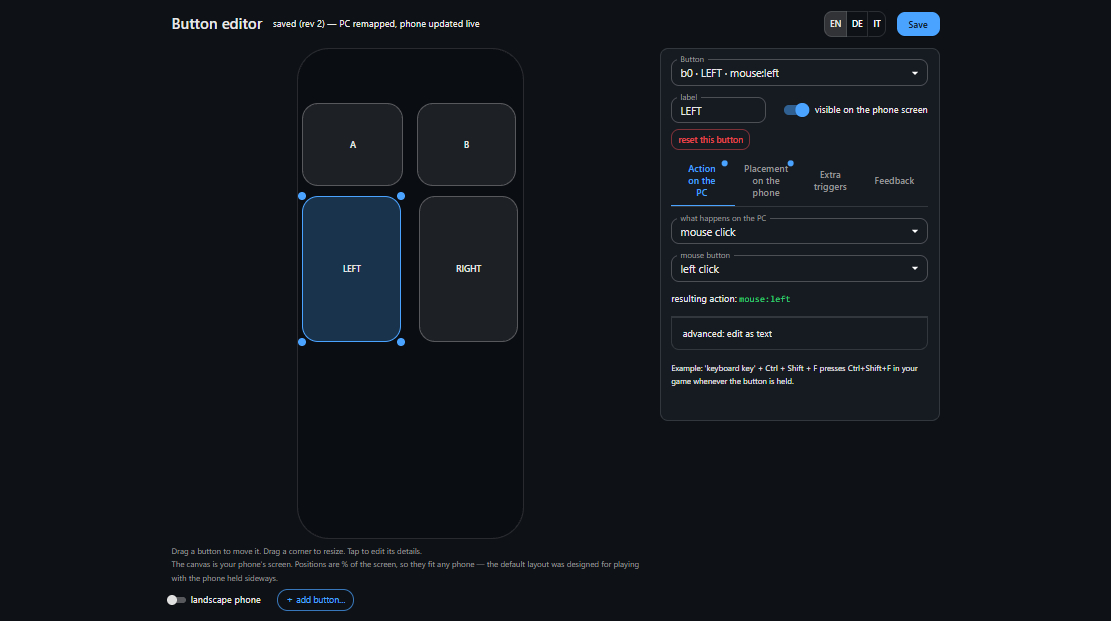
RIGHT stays
mouse:right— DuckStation will turn it into the off-screen shot, which in Time Crisis means reload / take cover: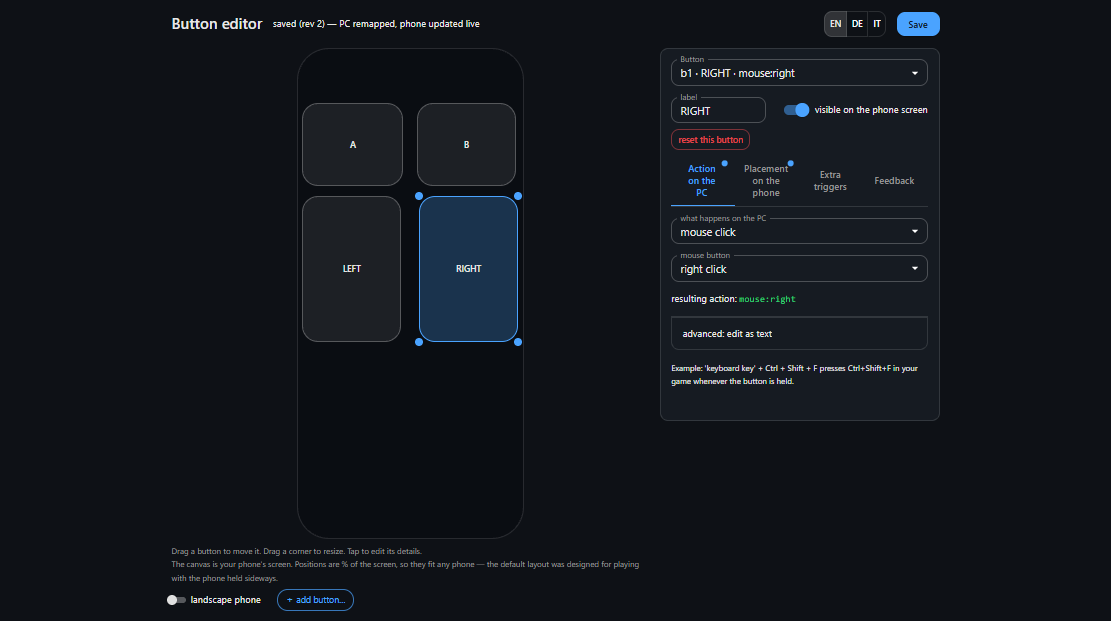
A → Action on the PC → keyboard key / combo → key
left: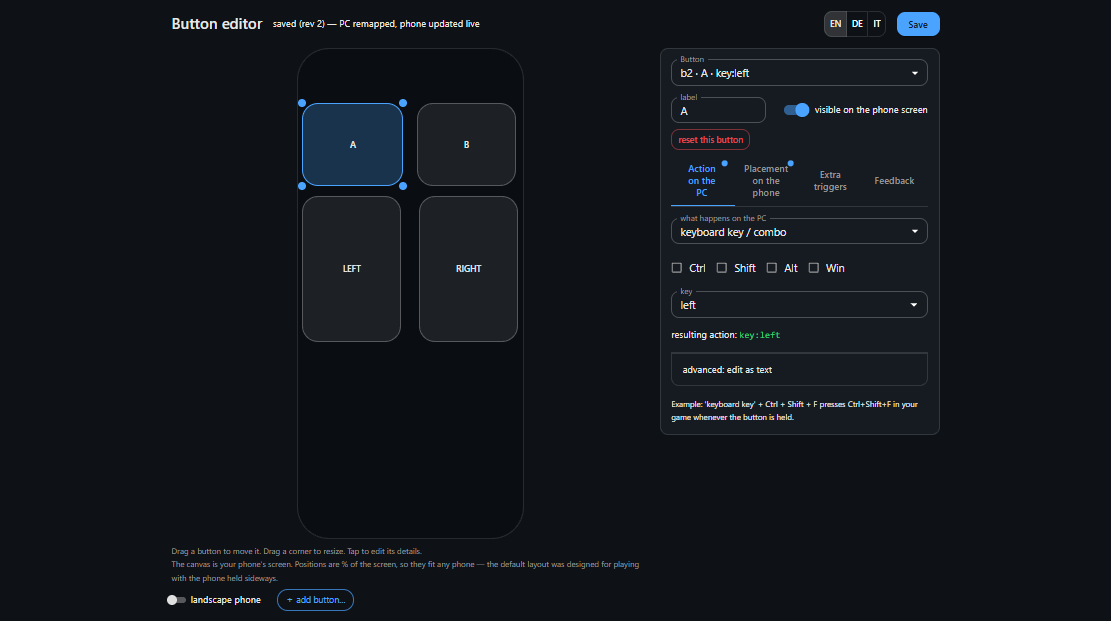
B → same, key
right: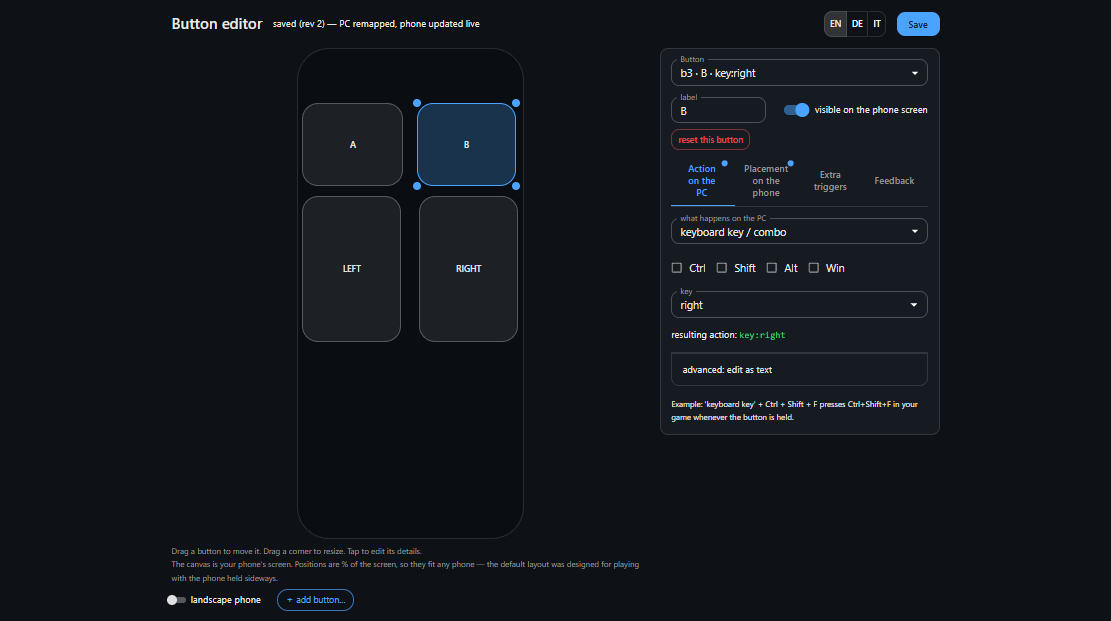
The arcade reload
Prefer ducking the way the arcade intended — by pointing the gun away from the screen? Select the RIGHT button, open Extra triggers, and set off-screen edge to any edge: aiming past any side of the screen now presses it (reload/duck), and aiming back on screen releases it. No tap needed.
5. DuckStation: the GunCon preset
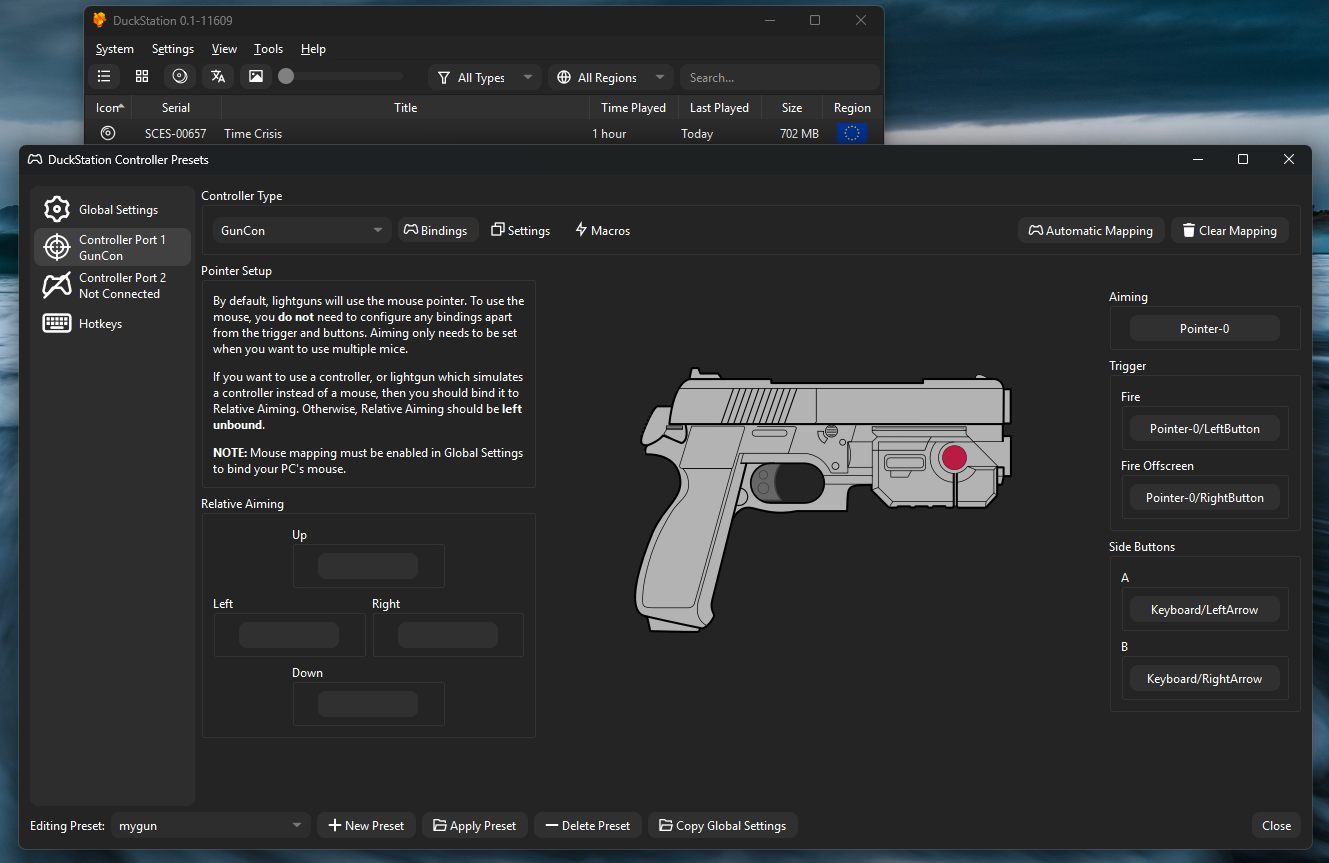
In DuckStation, open Settings → Controllers, select Controller Port 1, and set the controller type to GunCon. Then bind (or click Automatic Mapping for the pointer part and add the rest):
- Aiming →
Pointer-0(the mouse — note the hint in the panel: Mouse mapping must be enabled in Global Settings). - Fire →
Pointer-0/LeftButton— the phone's LEFT button. - Fire Offscreen →
Pointer-0/RightButton— the phone's RIGHT button: DuckStation fires one shot with the aim forced off-screen, which Time Crisis reads as reload/duck. - Side Buttons A / B →
Keyboard/LeftArrowandKeyboard/RightArrow— the phone's A and B buttons. - Leave Relative Aiming unbound — point-bang provides absolute aim.
Saving it as a preset (bottom bar) keeps the bindings reusable across games:
6. Play
- Run the game fullscreen on the calibrated monitor. Windowed play is not supported yet (the PC maps aim to the whole screen; per-window mapping is on the roadmap).
- In the game's own calibration screen, shoot the targets it shows — GunCon games calibrate themselves once and remember it.
- Enemies pop up — LEFT to shoot, RIGHT (or an off-screen flick, if you set the edge trigger) to duck and reload.
📹 Gameplay video placeholder — Time Crisis 1, USB flow, 60fps.
If shots land slightly off
- Nudge the aim with the on-phone adjust pad (arrows shift the aim in 0.5% steps).
- Recalibrate with more deliberate corner captures.
- Check the latency guide — enable the monitor's game mode and exclusive fullscreen; the display+game pipeline usually dominates end-to-end latency.
Looking for other games? Back to the game guides.